
LumenIMG field guide
How to write an AI poster prompt with text
Define the message first, then decide whether the words should be generated inside the artwork or added as editable text.
The practical answer
State the poster’s purpose, put the exact wording in quotation marks, and describe its hierarchy, background and colors. Keep the first message short and check every letter afterward. When dates, prices or wording must stay easy to change, generate artwork with clear space and add editable text in the editor instead.
A saved example: SUMMER SALE 50% OFF
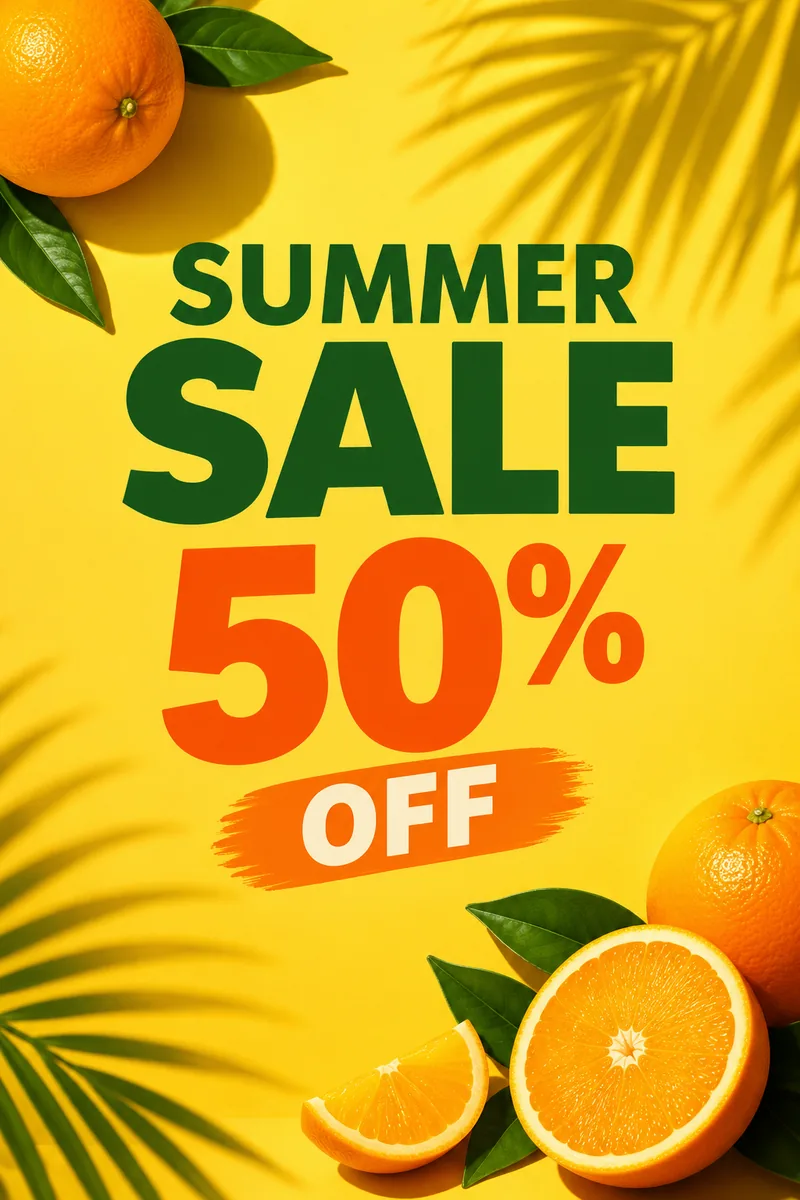
The original prompt was:
Bold summer sale poster: large clean typography reading "SUMMER SALE 50% OFF", oranges and palm leaf shadows on a warm yellow background, modern graphic designThis saved result has the intended words: SUMMER SALE 50% OFF. Repeated generations can vary in lettering and layout, so proofread each result before using it.
Give the prompt a clear visual brief
The short example combines four instructions. “Summer sale poster” establishes the purpose. The quoted wording supplies the message. “Large clean typography” gives the words priority. Oranges, palm-leaf shadows and yellow establish a coherent visual setting.
- Name the deliverable. A sale poster, event cover and editorial illustration need different compositions.
- Write the exact message. Put the headline in quotes. Start with one short headline rather than several dense paragraphs.
- Describe hierarchy. Specify a large headline, a smaller supporting line and room around the words if your layout needs them.
- Limit competing elements. Choose a background, palette and a few supporting objects. Ask for clear space behind the lettering.
Those instructions give the model a target; they do not enforce correct spelling. A request such as “no additional text” can communicate intent but still requires inspection of the result.
Choose generated lettering or editable text
| Your task | Useful approach | What to check |
|---|---|---|
| A short headline integrated with the artwork | Include the exact words in the generation prompt. | Spelling, repeated letters, spacing and visual hierarchy. |
| Prices, dates or copy that will change | Generate artwork with an empty text area, then add text layers. | Correct wording, contrast, margins and export size. |
| Several language versions | Reuse suitable artwork and create separate editable text versions. | Font coverage and line breaks for each language. |
Lettering generated inside an image is pixels. Selecting the Text module does not turn those pixels into editable characters. LumenIMG’s Text module adds separate layers, so use a clean artwork version when you need to replace the headline reliably.
In the example above, the lettering belongs to the generated image. For copy you will reuse or update, keep it in a separate text layer.
Try a background with room for your own text
This untested template keeps the same summer theme and reserves space for a headline, price and date. No generated result from this prompt is shown here:
Summer sale poster background, warm yellow palette, fresh oranges and soft palm leaf shadows arranged along the lower corners, modern graphic design, keep the upper half clean and empty for a large editable headline and leave a clear central area for a price and date, balanced composition with generous margins, no text, no letters, no numbers, no logos, no watermarkLoad the no-text background template. Review the settings and start generation when ready. Check that the reserved space is clear, then add your copy in the Text module.
What to do when the words are wrong
Check the output at full size before sharing it. Compare the headline character by character with your intended copy, including numbers, punctuation and symbols. Look for small invented labels elsewhere in the picture, not only the largest words.
- If the prompt is overloaded, shorten the headline and remove secondary messages before another generation.
- If the illustration is useful but exact copy is essential, make a clean background version and place the wording with editable text.
- If you try another generation, keep track of the extra credits. A successful image with a spelling error is still a generated output, not automatically a failed request.
For Chinese copy, inspect every character and check the chosen font’s language support. Review line breaks and the exported text carefully, even when the editing preview looks correct.
Check actual dimensions, not only the requested ratio
This example’s source script requested 4:5, but the saved original is 1,024 × 1,536 pixels: a 2:3 image. The website copy is resized to 800 × 1,200, also 2:3. We show the actual dimensions because a requested ratio does not prove that the returned file matches it.
Before delivery, inspect the result’s dimensions and your target placement. Choose a canvas, crop or framing that keeps the headline and essential details inside the safe area. A crop is not automatic expansion of the artwork. Review the export preview, then open the downloaded file to verify text, edges and framing.
Use the example as a starting point
Load the original poster prompt, replace the message with your own, and review the selected model, requested ratio and credit cost. The link fills those settings; you explicitly start generation after signing in. Results can differ from the example.
Browse more AI image examples and prompts, or use the generation cost guide to budget for revisions.
Questions and answers
Can AI generate correct text in a poster?
It can produce readable lettering, as the saved SUMMER SALE example shows. Results vary, so check every letter, number and symbol before using a generated poster.
Can I edit the words inside a generated image?
Generated lettering is part of the image pixels. The Text module adds editable text layers; it does not convert existing image lettering into characters. For copy that changes, use suitable artwork with space for a separate text layer.
Why does the example not match its requested 4:5 ratio?
The script requested 4:5 but the saved file is 1,024 by 1,536 pixels, which is 2:3. The cause is not established by the saved evidence. Always inspect actual output dimensions and adjust framing for your intended placement.
Will loading this prompt generate an image or spend credits?
No. The link fills the prompt, model and requested aspect ratio. You review them, sign in if needed, and explicitly start generation. The editor shows current availability and cost.
Put the guide into practice
Try 1 daily FLUX.1 Schnell 1:1 preview without signing in, or sign in free for welcome credits and all models.
Open image generator →