

AI image workspace

From one image
to finished work.

LumenIMG puts cutouts, image generation and finishing on one canvas. Work in any order, revisit any step, and export something ready to deliver.

See it work

Free credits every day · Nothing to install · Use it right in your browser

The edge is the work.

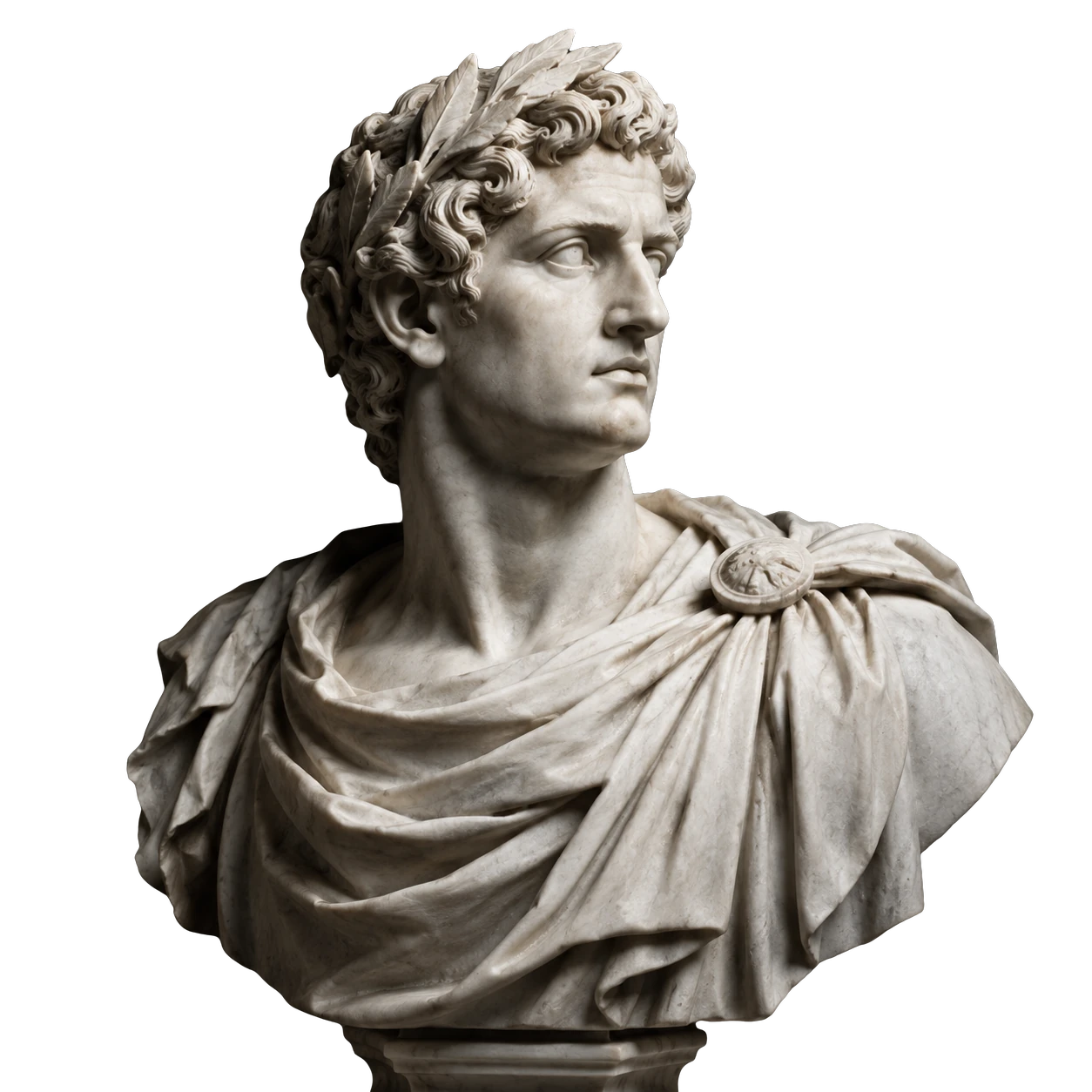
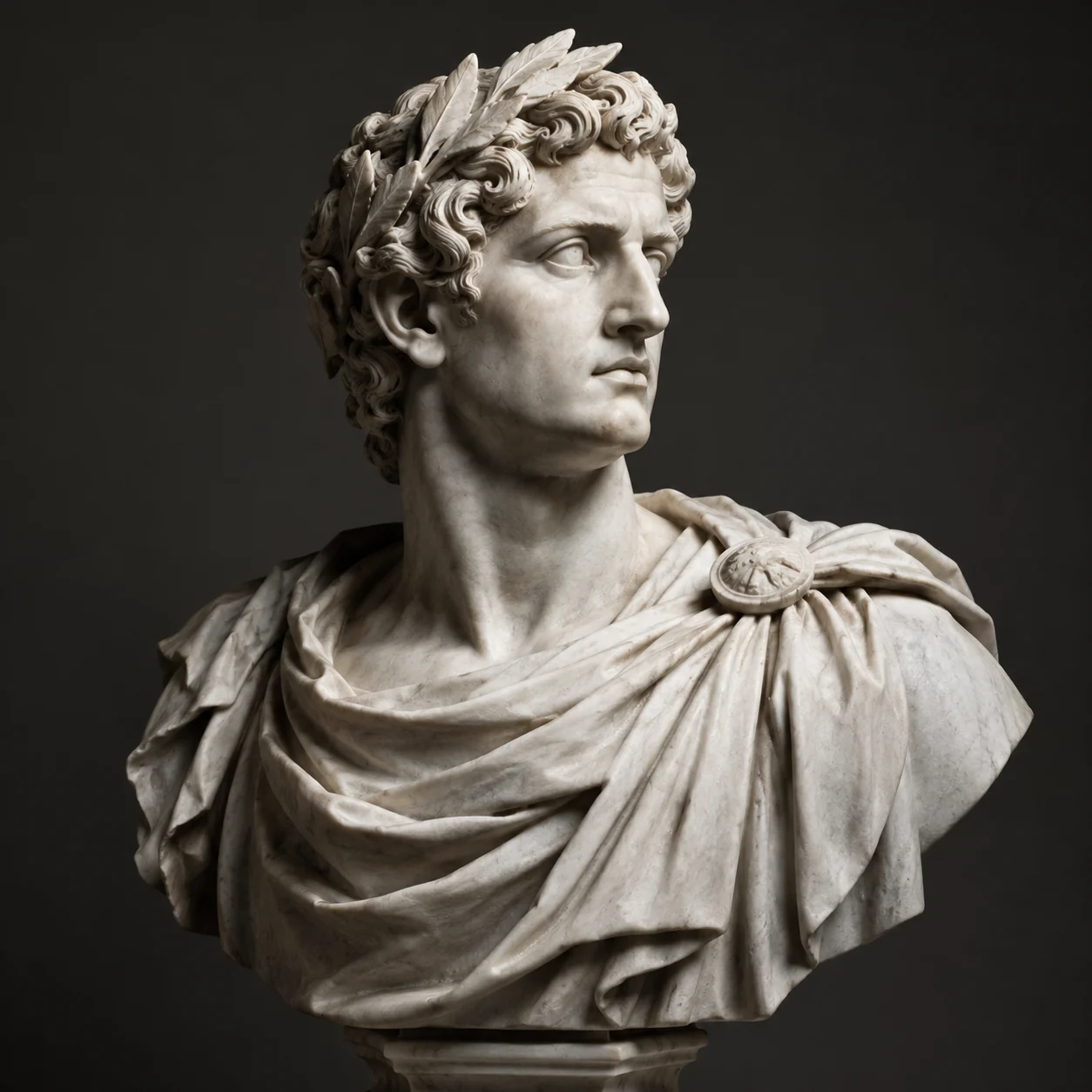
Drag the handle to compare the original with the cutout. Switch backdrops to check how hair, glass and fine gaps hold up.

Cutout result
Original
Original Cutout

Three tools. One canvas.

Use each module on its own or switch between them at any time, carrying the result of one step straight into the next.

Original
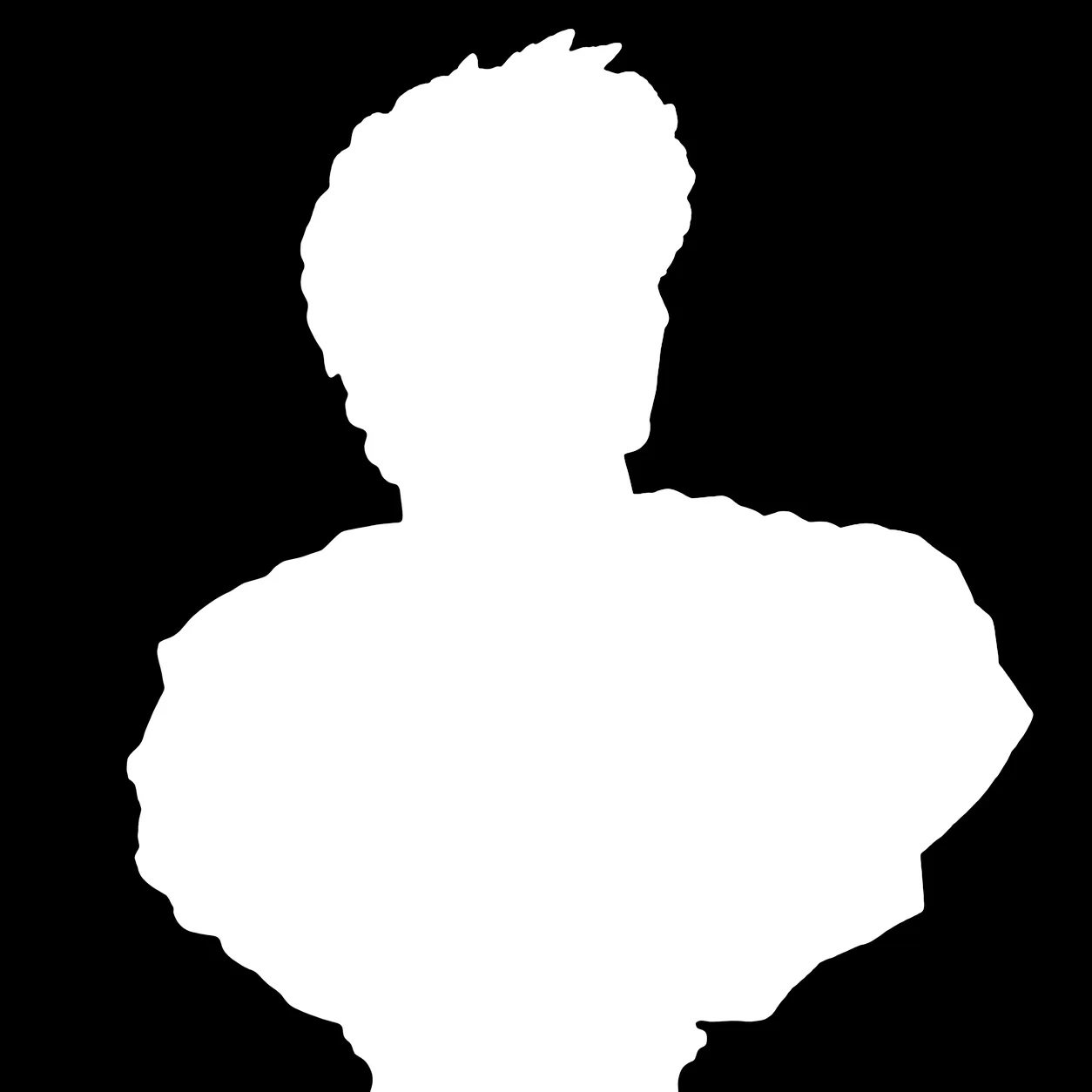
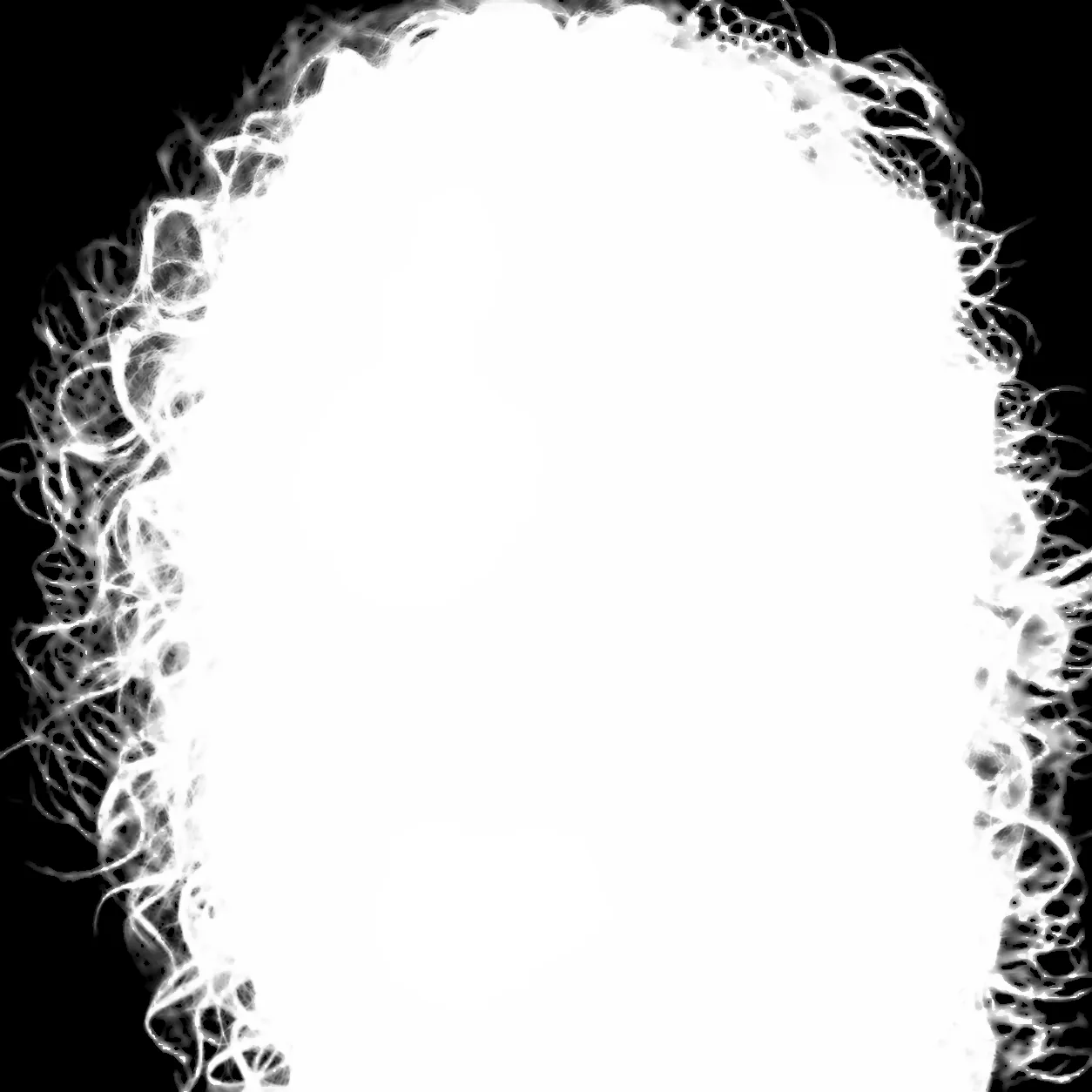
Alpha mask

Cutout

Cutout

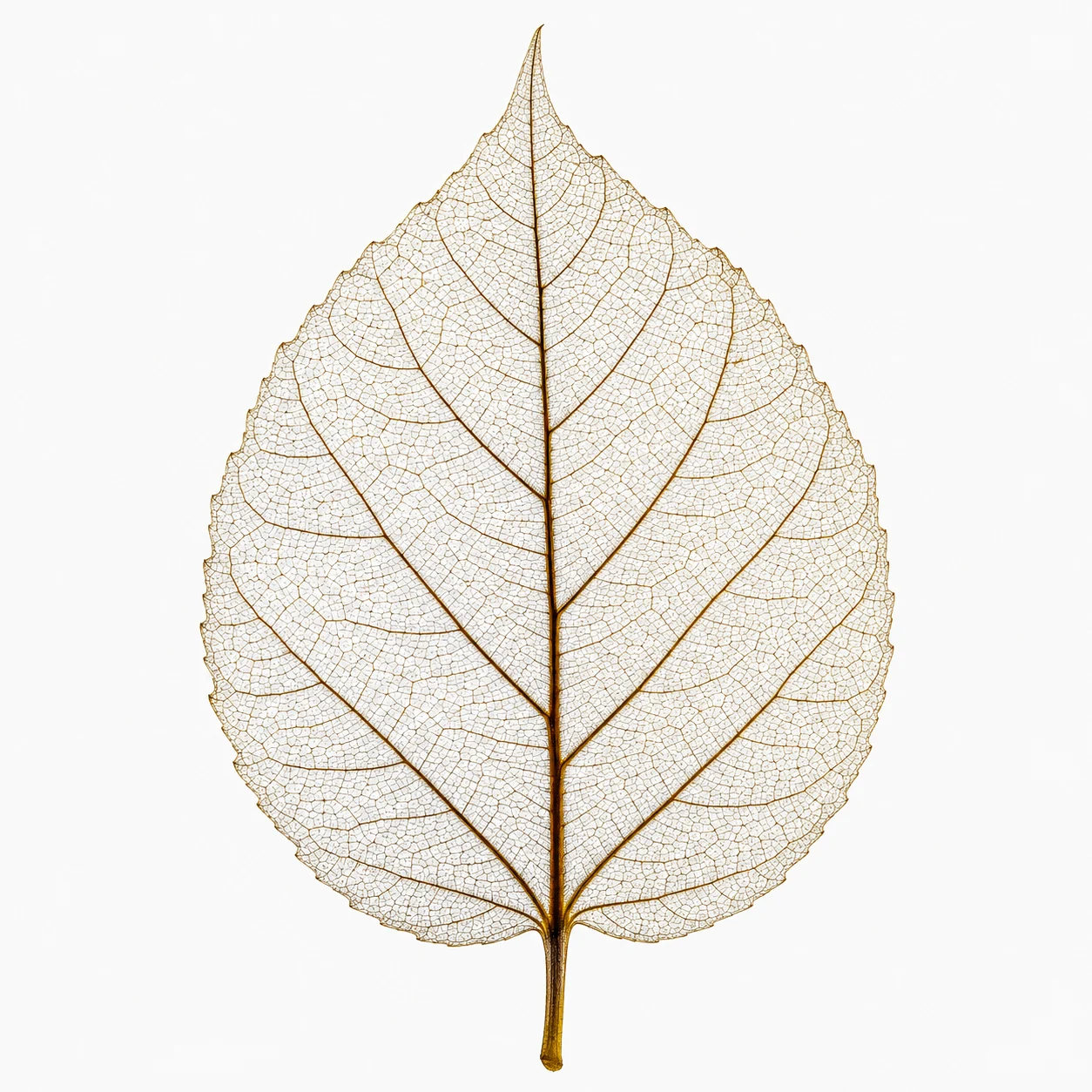
Finds the subject and keeps every strand of hair

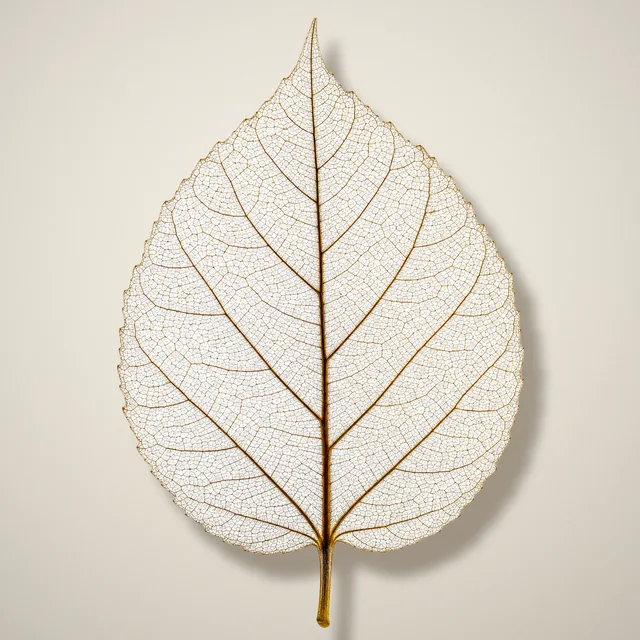
Upload an image and pick the kind of subject. Standard suits most products and portraits; Fine also removes color spill along the edge, which helps with hair, glass and complex outlines.

  • Separate treatments for hair, hard product edges and soft transitions
  • Shrink, feather and harden the edge in real time
  • Process a whole batch and download it as one archive
Generate

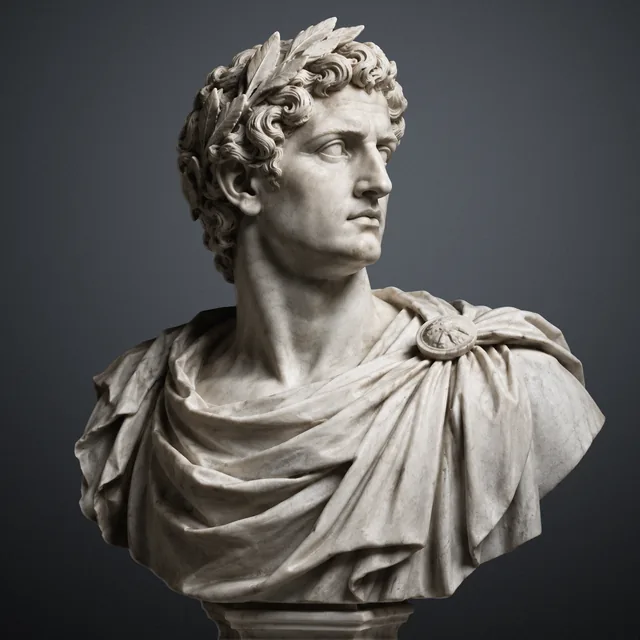
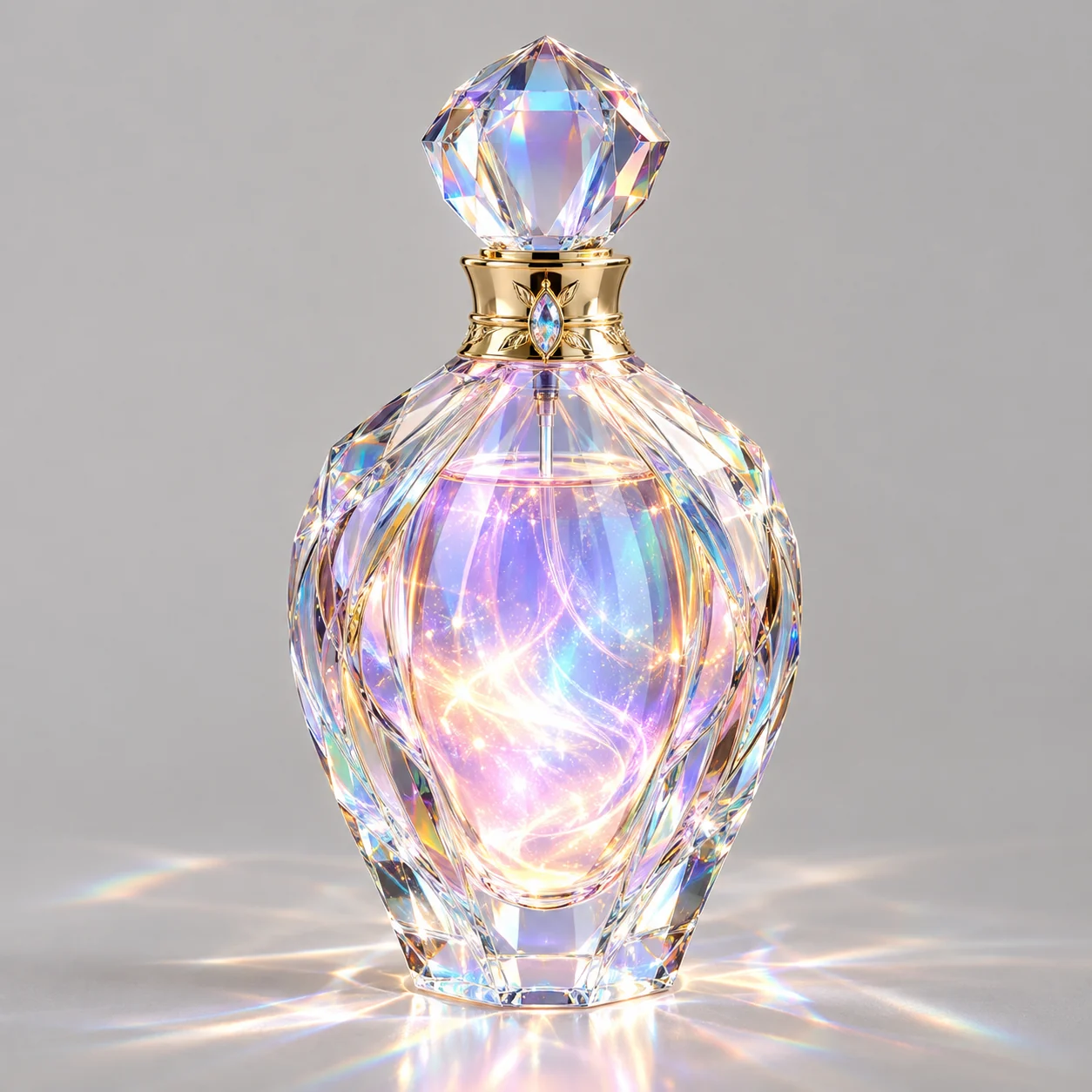
Describe a scene and get material you can keep working on

Choose from several image models and common aspect ratios. Style, lighting and framing vocabularies help you write precise prompts, and results go straight into cutout or finishing.

  • Several models to balance speed against detail
  • Generate a few at once and keep the best
  • AI prompt polish fills in lighting and composition
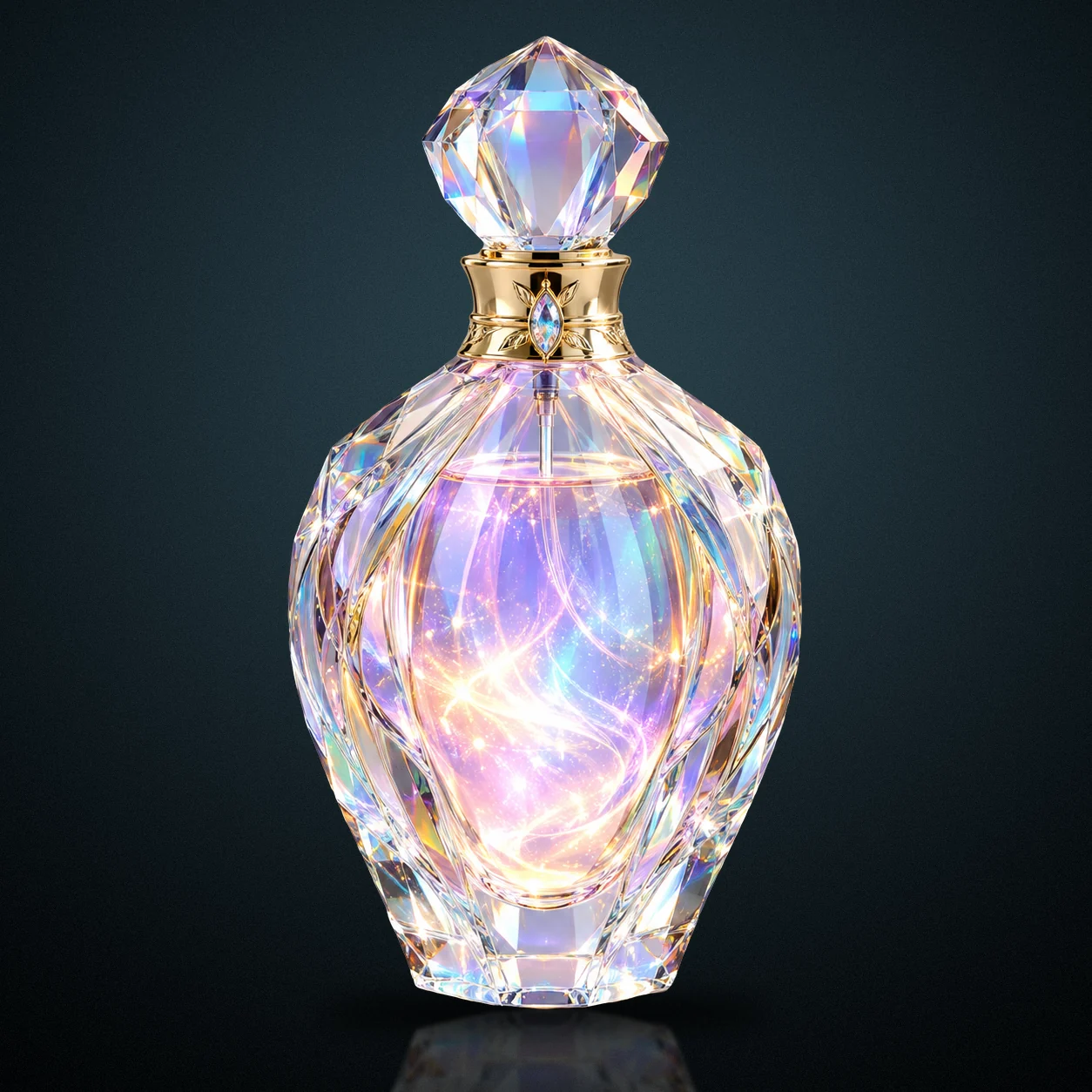
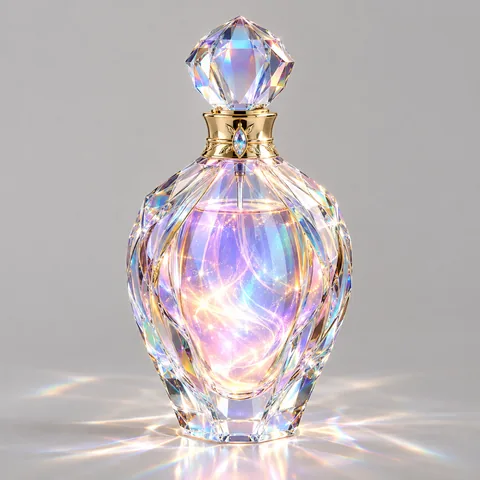
Dark studio · contact shadow · floor reflection

Finish

Light, backdrop and color in one pass

Give a cutout a new backdrop and a shadow, set the direction and temperature of the light, then pull it together with a film look. Every change stays editable and the original is always kept.

  • Solid, gradient or image backdrops, or a whole scene made by AI
  • Contact shadows, cast shadows and rim light with live preview
  • Ten looks and a dozen controls, applied to the whole frame or the subject only

No fixed order.

Start anywhere and finish anywhere. Every operation leaves a new version in the filmstrip, so you can always go back.

A
Product listingProduct shot → white-background hero
  1. Upload photo
  2. Standard cutout
  3. White + contact shadow
  4. Export 1:1
B
Concept posterOne sentence → finished poster
  1. Generate
  2. Cut out subject
  3. AI scene
  4. Grade, export 3:4
C
Portrait retouchPortrait → transparent PNG
  1. Upload portrait
  2. Fine cutout
  3. Warm film look
  4. Export PNG

Built for long sessions.

Modules on the left, controls on the right, the image in the middle. Common actions have shortcuts, and the whole flow works on a phone too.

  • Modular panelsCutout, generation and finishing live in their own panels, with the most used controls first.
  • Non-destructiveAdjustments are stored as settings you can change later, with undo and redo for every step.
  • Version filmstripEach operation creates a new version. The original is always kept and easy to compare.
  • Inspect the detailsA compare slider, mask view and loupe make edge problems obvious.
  • Shortcuts1/2/3 switch modules, hold \ to see the original, Ctrl+Z to undo, Ctrl+S to export.
  • Saved on this deviceYour workspace is kept in the browser, so a refresh never loses your progress.

Pick a plan. Credits refresh daily.

Credits reset every day at 00:00 UTC and don't roll over. Finishing and exporting never use credits.

Credit usage

Fast cutout
1 credits
Standard cutout
2 credits
Fine cutout
3 credits
AI image (by model)
1–4 credits
AI scene
2 credits
GPT scene
3 credits
Finishing and export
Free
  • Secure checkout with cards, PayPal and more
  • Cancel any time, no extra steps
  • Credits are refunded if a job fails

Before you start.

How do credits work?

Each AI operation uses credits: standard cutout 2, fine cutout 3, AI image 1–4 depending on the model, AI scene 3. Finishing and exporting are free. Credits reset to your plan's allowance every day at 00:00 UTC; unused credits don't carry over.

Do failed jobs use credits?

No. If a job fails or the service is temporarily unavailable, the credits for it are refunded automatically.

Can I use the results commercially?

Yes. Your uploads and results belong to you and can be used in commercial work. Please make sure you have the rights to the images you upload.

Where are my images stored?

Results are sent straight back to your browser. Versions in your workspace are stored only in this browser on this device, and you can clear them any time under Assets.

Which formats and sizes are supported?

You can upload JPG, PNG and WebP up to 40 MB. Export as PNG, JPG or WebP at the original size or a custom long edge.

How do I cancel my subscription?

Open the account menu in the top right and choose Cancel subscription. Your plan won't renew: you keep it until the end of the current billing period, and then your account returns to the Free plan.

Make the next image a little better.

Nothing to install. Sign up and get free credits every day.

See pricing