
LumenIMG field guide
How to add text, remove backgrounds and relight AI images in one workspace
Generating an image is rarely the final step. Finish typography, subject isolation, rim lighting, cast shadows and color grading on the same canvas without paying for re-rolls or bouncing between separate apps.
The practical answer
In LumenIMG, every AI output lands directly in your browser filmstrip so you can refine details with a reference-image pass (FLUX.2 Klein at 2 credits or GPT Image 2.5 at 4 credits), isolate subjects with Cutout and Magic Brush (1 to 4 credits), and complete editable Text layers, 360-degree directional key and rim lighting, contact shadows, 10 color looks and PNG/JPG/WebP exports locally at 0 extra credits. Free accounts include 8 daily fast credits and 30 welcome credits; Pro is $6.99/month (1,200 credits) and Ultra is $14.99/month (3,500 credits).
Stop spending credits to fix layout and lighting tweaks
Most creators burn extra generation credits trying to nudge headline wording, shift color warmth or clean up a corner after they already like the main visual. Keeping generation and finishing inside one non-destructive canvas separates paid AI steps from zero-credit adjustments:
| Task stage | Module used | Credit cost |
|---|---|---|
| Initial visual draft | Generate (FLUX.1 Schnell / FLUX.2 Klein / GPT Image 2.5) | 1, 2 or 4 credits (AI prompt polish is 0) |
| Canvas-guided re-roll | Generate with “Use the current image” checked | 2 credits (FLUX.2 Klein) or 4 credits (GPT Image 2.5) |
| Subject isolation and touch-ups | Cutout (Fast / Standard / Fine) + local Magic Brush | 1, 2 or 4 credits for cutout; Magic Brush is 0 |
| Editable headlines, dates and prices | Text module (independent editable layers) | 0 credits |
| Relighting, shadows, grading and export | Edit / Finish (360° light, shadows, 10 color looks) | 0 credits |
Confirm exact live model prices in the editor or on the pricing page before generating; failed AI jobs refund their credits automatically.
When to iterate with a reference image versus cut out
After an initial image arrives in the filmstrip, choose between two editing paths depending on what needs to change:
- Keep the composition, adjust mood or props: Turn on “Use the current image” in Generate (supported by FLUX.2 Klein and GPT Image 2.5) to pass your active canvas composite along with updated prompt instructions.
- Separate the hero subject from its background: Run Cutout (1, 2 or 4 credits) and use the local Magic Brush or edge feathering if hair, fur or translucent edges need quick refinement, then place the isolated cutout over a solid white, gradient, uploaded photo or AI product scene.
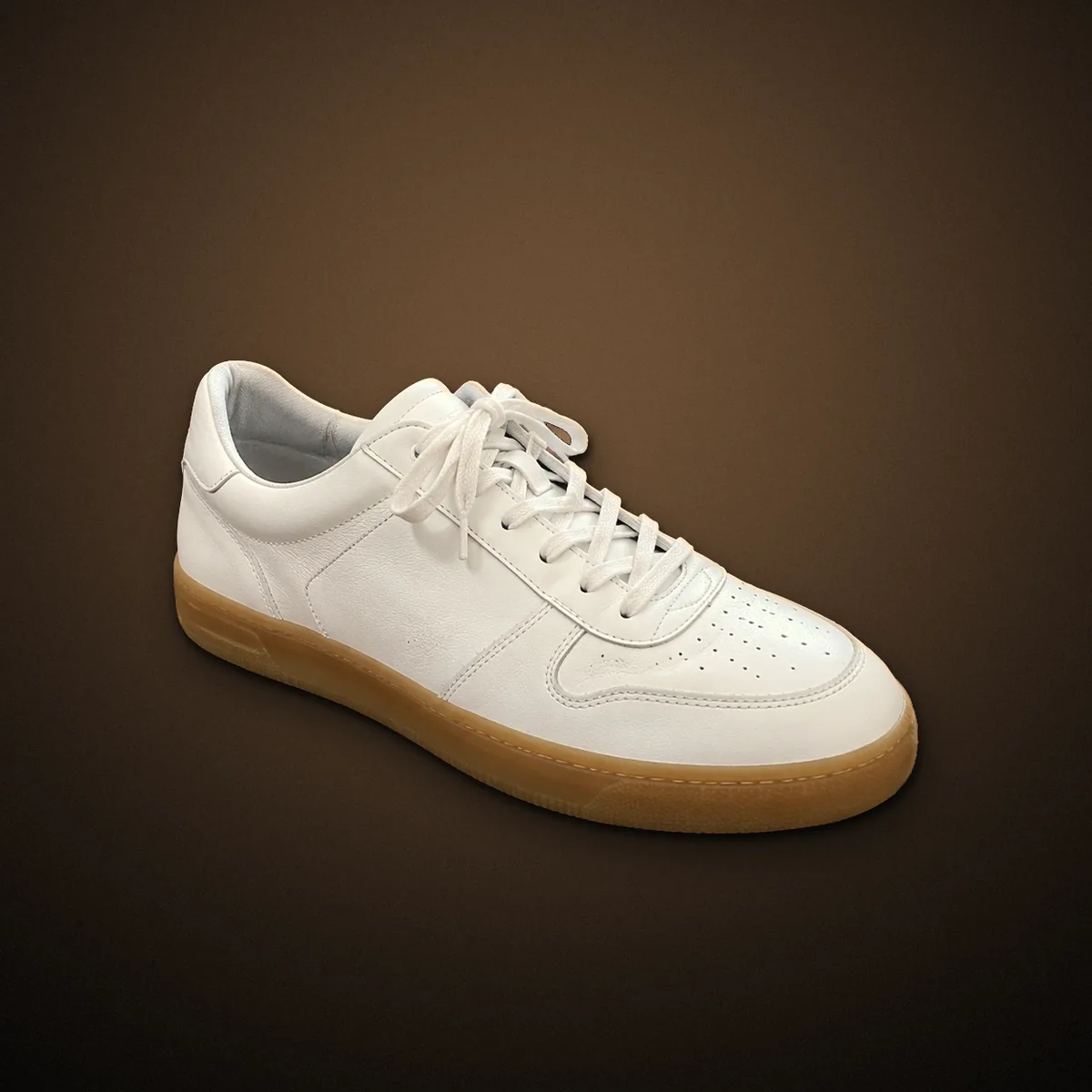
What you can finish locally at zero extra credits
Everything inside the Text and Edit modules runs directly in your browser without touching generation credits or uploading private text layouts:
- Overlay crisp editable copy: Add headlines, promo badges, dates or multi-language titles in the Text module over clean negative space instead of asking pixel renderers to re-spell numbers; see the poster text guide and cover prompt templates.
- Match light direction and depth: Dial a 360-degree directional key and rim light plus contact and cast shadows so composited subjects sit naturally inside a generated backdrop; read more in lighting and shadows.
- Unify color and export cleanly: Apply one of 10 built-in color grading looks, compare against earlier filmstrip versions using the split view, and download full-resolution PNG, JPG or WebP files.
Start an editable backdrop in the studio now
To test the one-canvas workflow without guessing poster layout inside pixels, generate an uncluttered scene first and layer your copy afterward:
Studio tabletop backdrop with soft pastel gradient, minimal architectural arch shadow on the left, open clean right half for bold headline typography, soft natural morning light, no text, no letters, no logosLoad this editable 4:5 studio backdrop prompt or open the generation workspace directly. Explore model comparisons or budget your runs with the cost guide.
Questions and answers
Can I add editable text and adjust lighting after generating an AI image?
Yes. Every generated image opens in the same LumenIMG browser workspace where you can add separate Text layers, adjust 360-degree directional key and rim light, add contact shadows, apply 10 color looks and export as PNG, JPG or WebP at 0 extra credits.
Does using the current canvas image as a reference work on every model?
No. Reference-image generation works on FLUX.2 Klein (2 credits) and GPT Image 2.5 (4 credits), while FLUX.1 Schnell (1 credit) accepts text prompts only.
How much do Cutout and Magic Brush cost after generation?
Cutout uses 1 credit (Fast), 2 credits (Standard) or 4 credits (Fine for hair, fur and glass). Local Magic Brush touch-ups, feathering, shadows, text layers and file exports all cost 0 extra credits.
Are my edited versions stored on LumenIMG servers?
No. Completed outputs are returned directly to your browser, and your multi-version filmstrip history is stored locally on your device so you can clear it anytime under Assets.
Put the guide into practice
Try 1 daily FLUX.1 Schnell 1:1 preview without signing in, or sign in free for welcome credits and all models.
Open image generator →